OnTime Meeting Timer

A free, open-source meeting timer built for Jehovah’s Witnesses congregations. OnTime automatically scrapes the current Watchtower and Midweek Meeting schedules from wol.jw.org, manages timing for all parts, and shares a live display to any device on your network — on Windows, macOS, and Linux.




Features
Meeting Management
- Meeting Templates: Support for midweek, weekend, and custom meeting formats
- Automatic Meeting Updates: Can scrape current meeting schedules from wol.jw.org
- Manual Customization: Edit all meeting parts, durations, and presenters on the fly
- Weekend Song Editor: Specialized interface for managing weekend meeting songs
- Flexible Meeting Creation: Create meetings from templates or from scratch
- CO Visit Mode: Special schedule modifications for Circuit Overseer visits with automatic expiration
- Smart Meeting Selection: Automatically selects the appropriate meeting based on the current day of week
- Session Recovery: Persists timer state for recovery after unexpected shutdowns (Crashes and app crashes)
Timer Functions
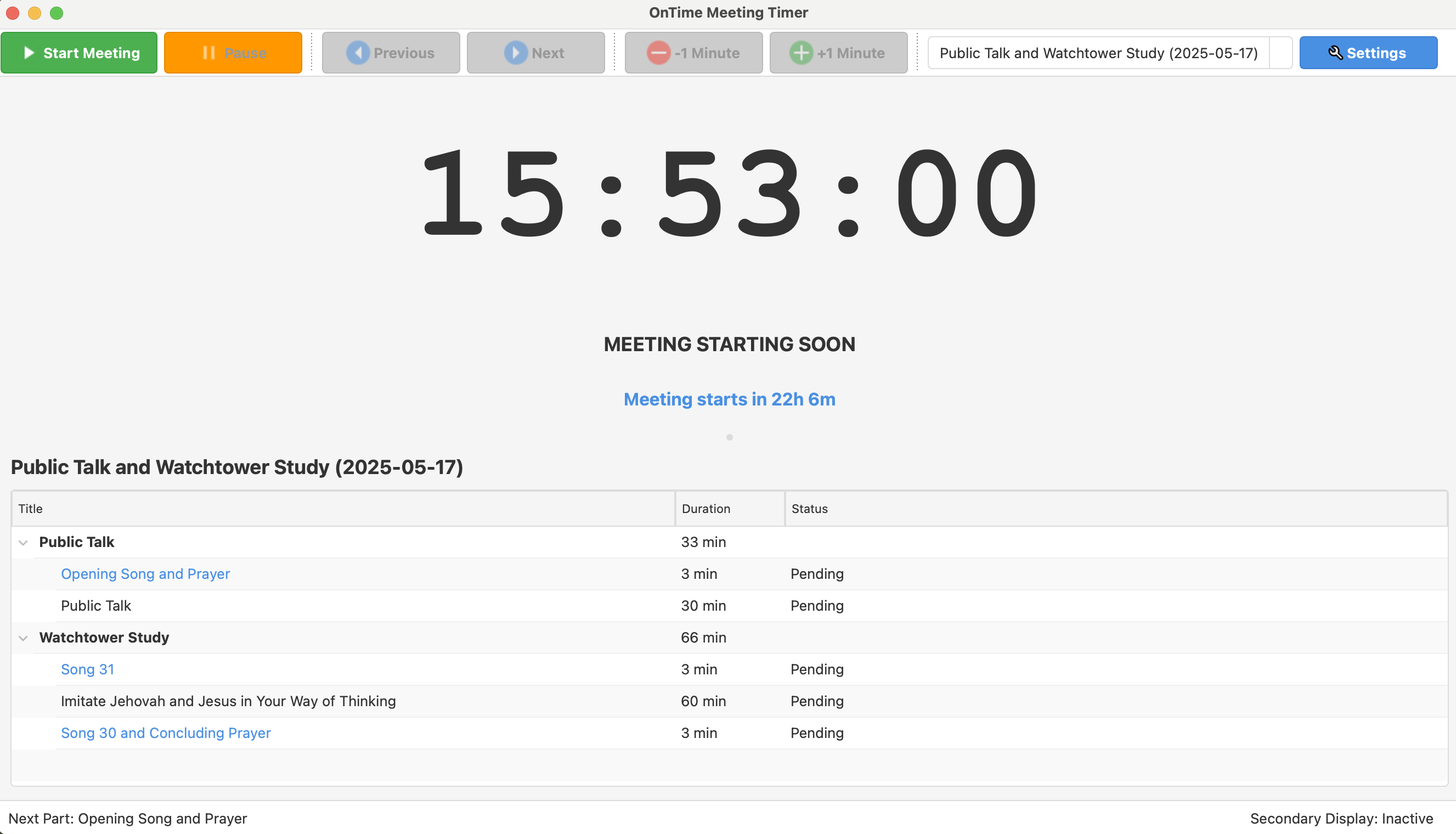
- Intuitive Timer Controls: Start, pause, stop, next part, previous part
- Time Adjustment: Add or subtract minutes on the fly
- Part Navigation: Jump to any part in the meeting
- Overtime Tracking: Automatic tracking of overtime for individual parts and the entire meeting
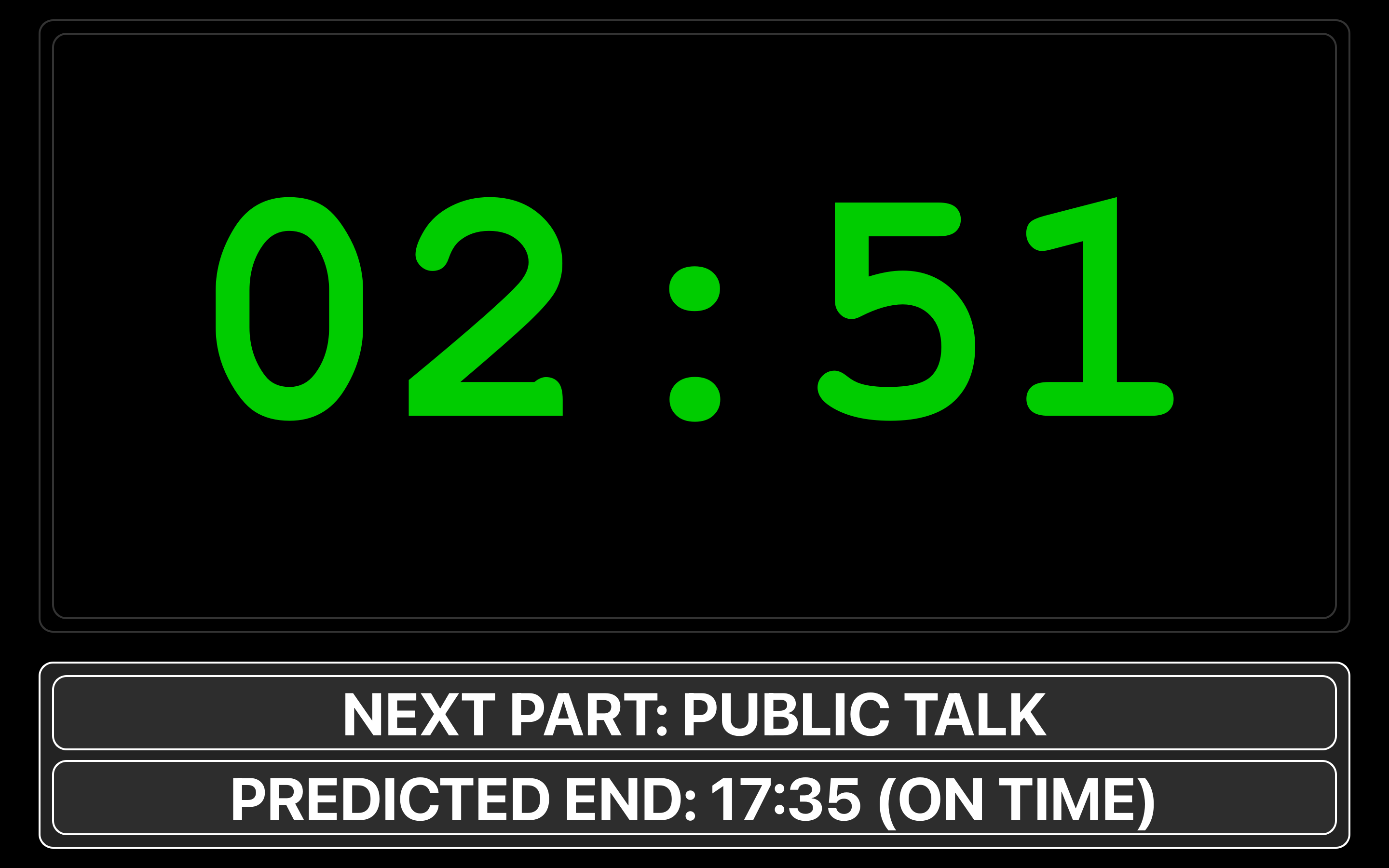
- Predicted End Time: Real-time calculation of expected meeting end time based on current progress
- Chairman Transitions: Special transition mode between parts with automatic timing
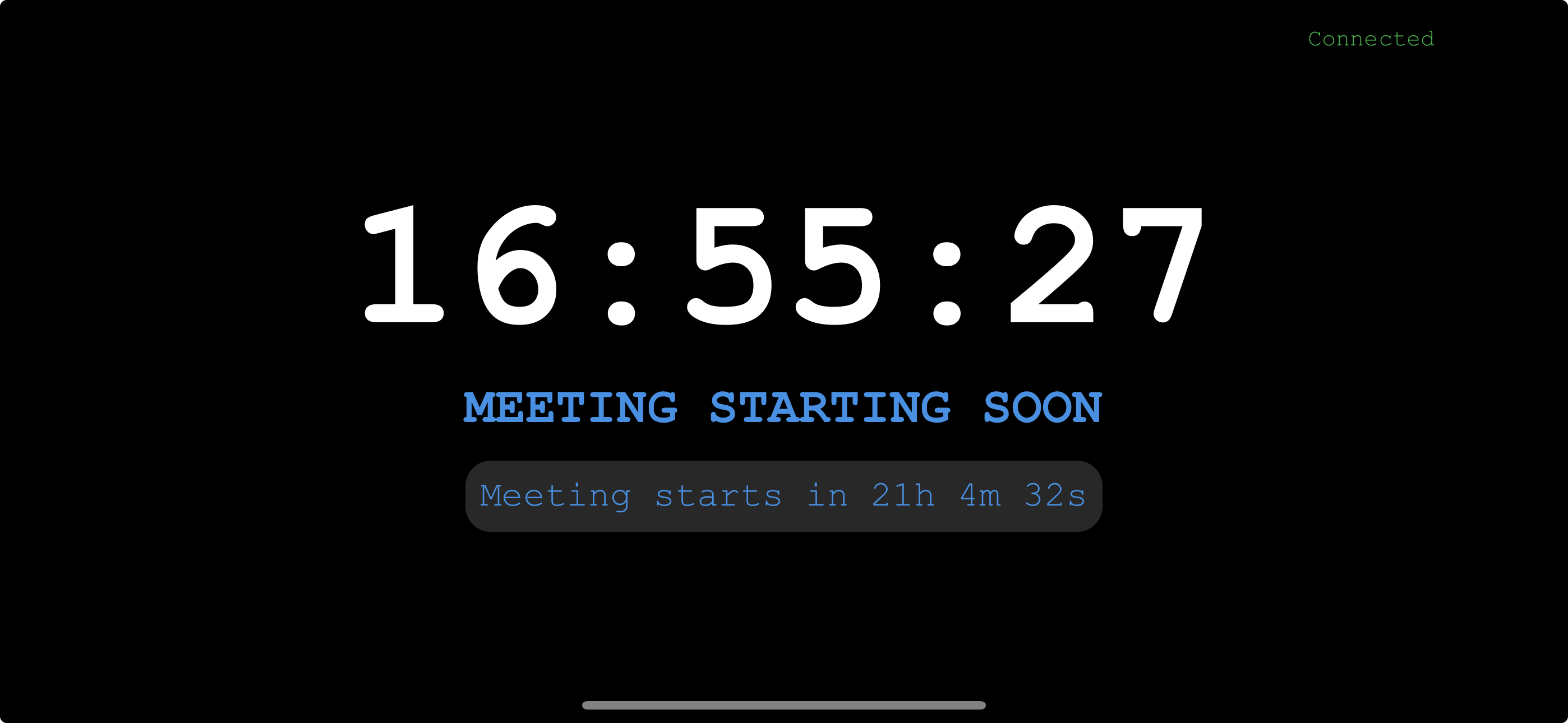
- Meeting Countdown: Countdown display to scheduled meeting start time
- Notifications & Reminders: Configurable alerts for meeting start delays and part overruns
Display Options
- Multi-Screen Support: Configure primary and secondary displays
- Secondary Display: Full-screen display optimized for speakers/audience
- High-Contrast Display: Ensures visibility from a distance
- Theme Options: Light, dark, and system-following themes
- Font Sizing: Automatic adjustment for optimal visibility at any window size
- Analog Display Mode: Clock-style analog timer view, switchable with F9
- System Tray: Minimize to system tray for unobtrusive background operation
Network Display
- Browser-Based Remote Display: Share timer on any device with a web browser
- Multiple Connection Methods:
- Built-in web server provides a complete solution
- WebSocket-only option for custom displays
- QR Code Connection: Easily connect mobile devices by scanning QR code
- Auto-Start Option: Network display can start automatically with the application
- Multiple Connected Devices: Support for multiple viewers on different devices
Internationalization
- Multi-Language Support: English, Italian, French, and German
- Dynamic Language Switching: Change language without restarting the application
Cross-Platform
- Works on Windows, macOS, and Linux
- Consistent interface across platforms
- No external dependencies required
- Automatic Update Checking: Notifies you when a new version is available
Keyboard Shortcuts
| Shortcut | Action |
|---|---|
| Ctrl+N | New Meeting |
| Ctrl+O | Open Meeting |
| Ctrl+E | Edit Current Meeting |
| Ctrl+Shift+S | Edit Weekend Songs |
| F5 | Update Meetings from Web |
| F9 | Toggle Digital/Analog Display |
| F10 | Toggle Secondary Display |
| Ctrl+, | Open Settings |
Main Interface
Secondary Display
Mobile Network Display
Who is this for?
OnTime is built for the sound/media desk (or any appointed brother) who manages timing at a Kingdom Hall or any Christian meeting. It handles:
- Midweek Meeting (Life and Ministry): all parts, student items, and song/prayer timing
- Weekend Meeting: Public Talk, Watchtower Study, and announcements
- Circuit Overseer visits: activates a modified schedule automatically
- Custom Meetings (Conventions, Assemblies, Special Meetings, etc): Import and manage custom meetings Schedules are fetched from the public wol.jw.org pages.
Getting Started
Download
Download the latest release for your platform:
Installation
Windows
- Run the downloaded installer (OnTimeSetup.exe)
- Follow the installation prompts
- Launch OnTime from the Start menu or desktop shortcut
macOS
- Open the downloaded DMG file
- Drag OnTime to your Applications folder
- Launch from Applications or the Dock
Note for macOS users:
After installing the.dmg, you may see a security warning because the app isn’t notarized by Apple. If the application is blocked, open System Settings → Privacy & Security and click Open Anyway next to OnTime Meeting Timer.
For more information, see Apple’s support article.
Linux
- Make the AppImage executable:
chmod +x OnTime.AppImage - Run the AppImage:
./OnTime.AppImage
First Use Guide
- Launch the application
- Select or create a meeting:
- Use the dropdown in the toolbar to select a meeting
- Or create a new meeting via File > New Meeting
- Start the timer:
- Click “Start Meeting” to begin
- Use the control buttons to navigate through parts
- Set up secondary display (optional):
- Go to Settings > Display
- Configure your secondary screen
- Toggle the secondary display with F10 or view menu
Using the Network Display
- Enable network display:
- Go to Settings > Network Display
- Choose “HTTP and WebSocket” mode
- Configure ports if needed
- Start the network display:
- Click “Start” on the Network panel in the tools dock
- Or use View > Network Display > Start Network Display
- Connect devices:
- Ensure all devices are on the same network
- Open a web browser on client device
- Enter the URL shown in the Network panel
- Or scan the QR code if enabled
Advanced Features
Meeting Management
- Web Scraping: Automatically get meeting schedules from wol.jw.org
- Template-Based Meetings: Create meetings from templates with customizations
- Meeting Editor: Full editor for all meeting details
- Weekend Song Handling: Special support for weekend songs with dedicated editor
Display Configuration
- Precision Screen Selection: Choose which specific screens to use for main and secondary displays
- Theme Selection: Choose between light and dark themes
- Tools Dock: Toggle and remember state of tools dock for more workspace
Timer Control
- Part Navigation: Double-click any part to jump directly to it
- Contextual Controls: Right-click menu for part-specific operations
- Time Adjustment: Add or remove minutes with a click
CO Visit Mode
- Circuit Overseer Visit: Activate CO visit mode to apply special schedule modifications
- Auto-Expiration: Automatically deactivates when the visit week ends
Troubleshooting
Network Display Issues
- Ensure all devices are on the same network
- Check if any firewalls are blocking the configured ports
- Try restarting the network display service
Secondary Display Issues
- If the secondary display appears on the wrong screen, check Settings > Display
- Restart the application after connecting new displays
- Ensure your graphics drivers are updated
Meeting Data Issues
- If web scraping fails, try manual creation or template-based meetings
- Reset settings in Settings dialog if needed
Contributing
OnTime Meeting Timer is an open-source application. Contributions are welcome!
- Report bugs or suggest features via GitHub Issues
- Submit pull requests via GitHub
License
OnTime Meeting Timer is released under the MIT License. See LICENSE for details.
Acknowledgments
Special thanks to Michael Mena, Antonio Montaperto and Clayton Smith for their kind contributions to this project ⭐⭐⭐⭐⭐!
- Built with 🐍 Python and a tiny bit of HTML 🕸️ and Javascript 🕸️
- Special thanks to all contributors and testers